
GUI Text Editor
GUI Text Editor is a multilingual screen-text catalog editor that edits the text and labels shown on the controls of an operation screen (View) per language, all at once. Open it from Project → GUI Text Editor or with the GUI Text Editor toolbar button.
It gathers the displayed strings of screen controls into one place and handles them in a table, so you can enter and compare the same label side by side in several languages on a single row. Instead of editing each control's text separately in the designer, you manage the whole screen text as a catalog here.
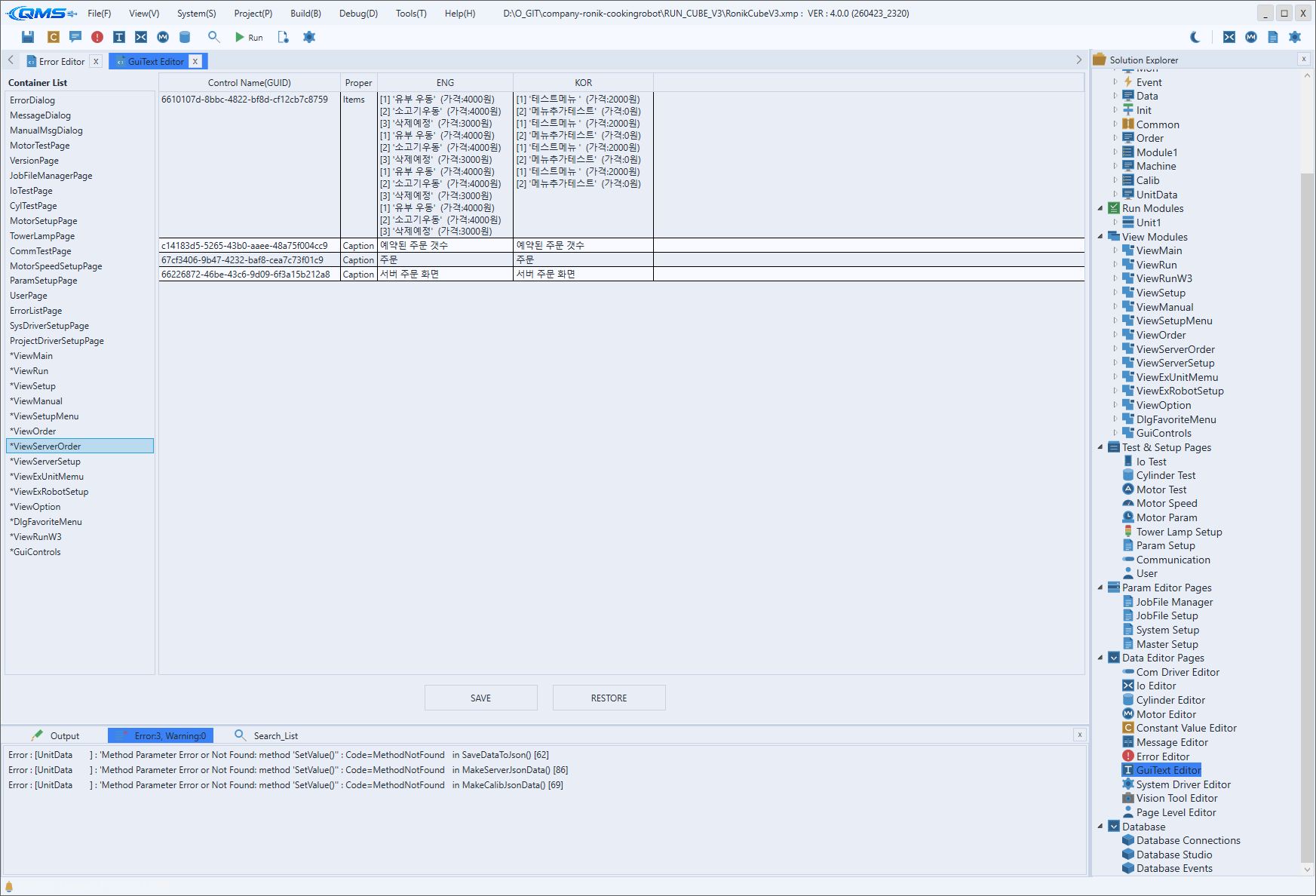
Main areas
The screen has three tiers from top to bottom: a header, an editing grid, and a bottom tools-and-save area. The middle grid is the actual editing area, while the top and bottom areas hold supporting information and action buttons.
| Area | Description |
|---|---|
| Header | The Title and File labels show the title and file of the catalog being edited. |
| Editing grid | A table that edits screen text by rows and columns. Selection and editing are per cell. |
| Bottom area | Consists of the zoom buttons on the left and the SAVE and RESTORE buttons on the right. |
Editing grid
In the middle grid, each row represents one text item and each column represents an identifier or per-language text. Select a cell to type into it directly, and select multiple cells to handle them together.
Right-clicking the grid opens a context menu for working with rows and columns.
| Menu | Action |
|---|---|
Add Row | Adds a new row. |
Add Cylinder Error ALL | Adds cylinder-related items in one step. |
Add Motor Error ALL | Adds motor-related items in one step. |
Insert Copied Cells | Inserts the copied cells. |
Duplicate Row | Duplicates the selected row. |
Duplicate Column | Duplicates the selected column. |
Move Up / Move Down | Moves the selected row up or down. |
Delete Row / Delete Column | Deletes the selected row or column. |
Increment Number | Fills the selected range, increasing the number by one. |
Bottom tools
The zoom buttons at the bottom left adjust the grid's display scale. Use them to zoom the preview in or out when there is a lot of text or the characters are too small to read.
| Button | Action |
|---|---|
| Zoom in | Increases the display scale. |
| Zoom out | Decreases the display scale. |
| Original size | Resets the scale to its default. |
At the bottom right are two buttons that finish the work. SAVE saves the edited screen-text catalog, and RESTORE reverts to the last saved state.
Workflow
- Open the screen from the menu or toolbar and check the target catalog in the header.
- Select the cell to edit in the grid and enter the per-language text.
- If you need more items, add rows with
Add Rowfrom the right-click menu. - If the characters are small, zoom the preview in with the bottom zoom buttons.
- Save with
SAVE, and if you edited something wrongly, revert withRESTORE.