
System Driver
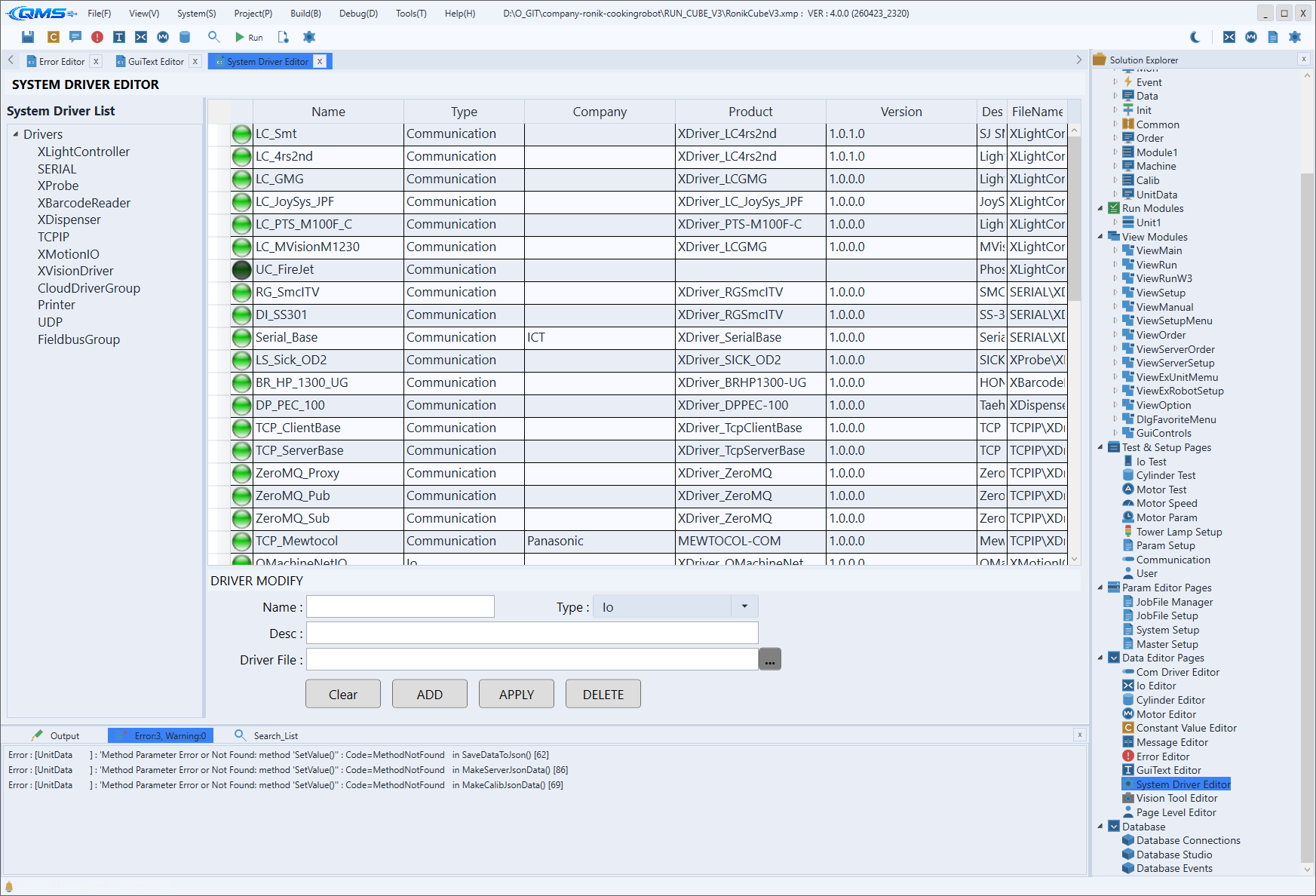
This screen, titled SYSTEM DRIVER EDITOR, is where you register and manage the equipment-control drivers used at the system level. You reach it through the System Driver setup, and it groups drivers of each kind, such as IOs, Motors, Communications, Cameras, VisionTools, and Extra, system-wide.
Drivers registered here are used in common across the whole system rather than within a specific project. You work by choosing a kind in the tree on the left, selecting a driver in the upper-right list, and then editing its information in the detail area below.
Left — System Driver List
The left System Driver List tree view groups registered drivers into folders by kind. Expanding a folder and selecting a category, such as IOs, Motors, Communications, Cameras, VisionTools, or Extra, narrows the right-hand list to drivers of that kind.
Because the right-hand grid's contents change with the category selected in the tree, you can pick just the kind you need when many drivers are registered.
Upper right — driver list
The upper-right DataGrid lists the drivers of the selected kind, one per row. Each column is metadata read from the driver DLL, and all columns are read-only.
| Column | Content |
|---|---|
| (icon) | Icon indicating the presence and load state of the driver file. |
Name | Driver name. |
Type | Driver kind. |
Company | Manufacturer name. |
Product | Product name. |
Version | Driver version. |
Desc | Driver description. |
FileName | Driver DLL file name. |
Selecting a row in the list fills the detail area below (DRIVER MODIFY) with that driver's information.
Bottom — driver detail (DRIVER MODIFY)
In the bottom area you edit the selected driver's information or register a new driver. Drag the GridSplitter between the list and the detail area to adjust the height ratio of the two areas.
| Field | Content |
|---|---|
Name | Driver name. |
Type | Driver kind. Choose from the combo or type it in directly. |
Desc | Driver description. |
Driver File | Path to the driver DLL file. Select the file with the ... button. |
The buttons at the bottom perform the registration operations.
| Button | Action |
|---|---|
Clear | Clears the entered detail fields. |
ADD | Registers a new driver with the entered information. |
APPLY | Updates the selected driver's information with the edited content. |
DELETE | Removes the selected driver from the list. |
System drivers and project drivers
Drivers registered here apply system-wide and are used in common by every project. Use this when you want to register a standard driver once and share it across the many equipment projects that use it repeatedly.
By contrast, a driver needed only in a specific project is managed in the project-scoped Project Driver. Even for the same kind of driver, the scope of application (system-wide vs. project-only) differs, so register it on the screen that matches your purpose.
Workflow
- Select the kind of driver to register in System Driver List on the left.
- Check the existing drivers in the right-hand list, or prepare to register a new one.
- In the detail area below, enter
Name,Type, andDesc, and specify the DLL withDriver File. - Register a new driver with
ADD, or pick an existing item and edit it withAPPLY. - Remove a driver you no longer use with
DELETE.