
Project Driver Editor
This screen, titled PROJECT DRIVER EDITOR, is where you register and manage the custom driver DLLs used by the current project. It groups the drivers needed for equipment control—IO, motor, communication, camera, vision, and so on—and manages them at the project level.
The screen consists of the title at the top, the View Type filter list on the left, and the driver list (DataGrid) on the right. Use the Add Driver and Remove Driver buttons at the bottom to add or remove drivers.
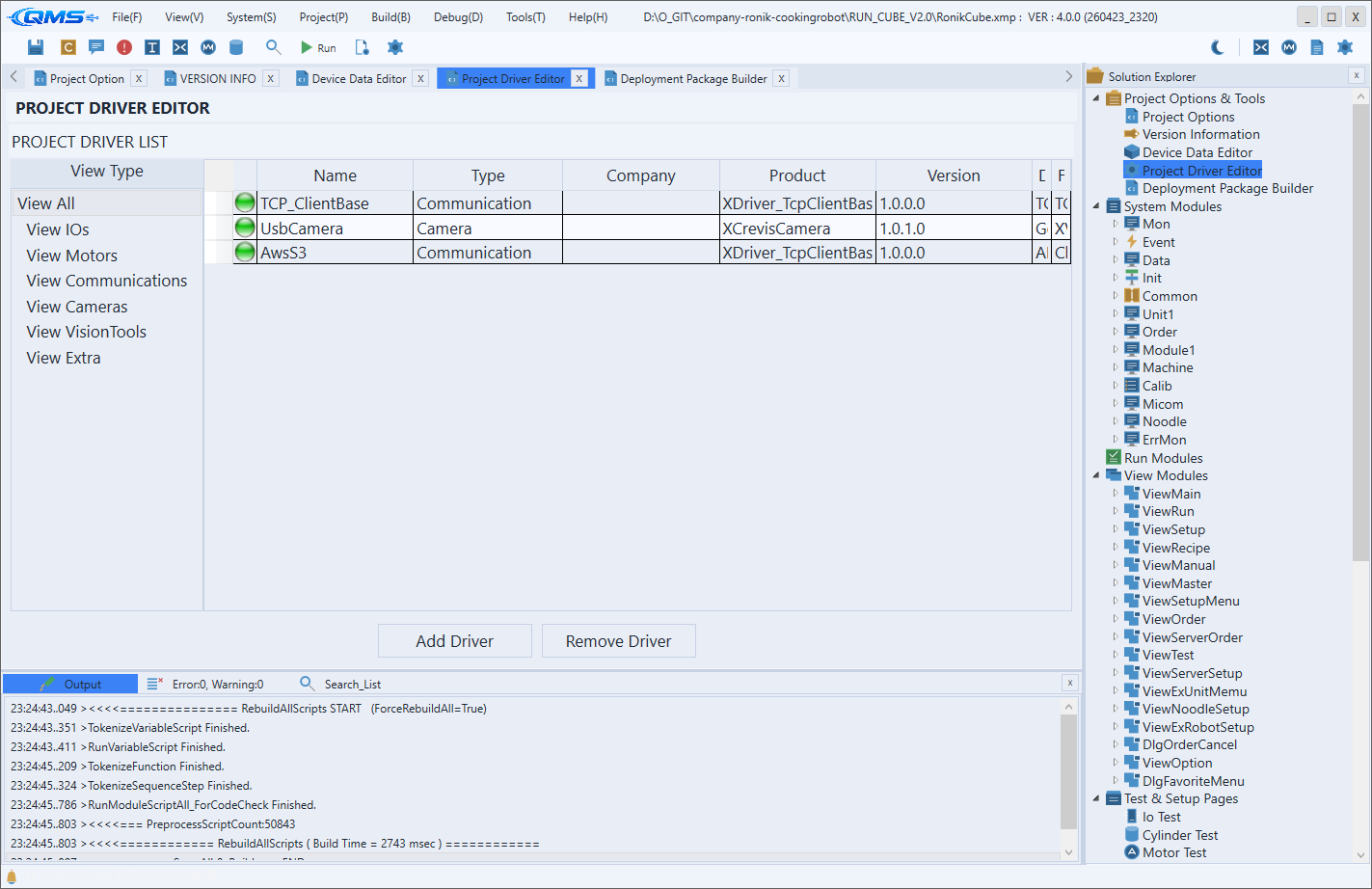
View Type (Left Filter)
The View Type list on the left filters the driver list on the right by category. When many drivers are registered, you can pick just the category you want to view.
| Item | Shown |
|---|---|
View All | All registered drivers |
View IOs | IO drivers |
View Motors | Motor (drive-axis) drivers |
View Communications | Communication drivers |
View Cameras | Camera drivers |
View VisionTools | Vision-tool drivers |
View Extra | Other miscellaneous drivers |
Selecting an item in the list immediately filters the grid on the right to that category. When you first open the screen, View All is selected and all drivers are shown.
Driver List (Right)
The DataGrid on the right shows the drivers of the selected category, one row each. Each column is metadata read from the driver DLL, used to identify which driver it is.
| Column | Content |
|---|---|
| (icon) | An icon indicating the DLL load status |
Name | Driver name |
Type | Driver category (IO, Motor, communication, etc.) |
Company | Manufacturer name |
Product | Product name |
Version | Driver version |
Desc | Driver description |
FileName | Driver DLL file name |
All columns in the list are read-only, and the values reflect the information of the registered DLL as-is. You can check which file is actually registered via FileName.
Project Driver vs. System Driver
The drivers registered here are project-scope drivers that apply only to the current project. Use this when managing a dedicated driver needed only by a particular equipment project, limited to that project. In contrast, drivers used in common across multiple projects are managed via the System Driver, registered system-wide. Even for the same kind of driver, the scope (per-project vs. system-wide) differs, so register it on the screen that matches your purpose.
Workflow
- Select the driver category to view in
View Typeon the left. - Check the registered drivers and their metadata in the list on the right.
- To add a new driver, register the DLL with
Add Driver. - To remove a driver you no longer use, select the row and click
Remove Driver.