
Version Information
Version Information is the screen for viewing and managing the version information of the project and each module. It accumulates the change history per version in chronological order, and is used for release tracking and on-site history management.
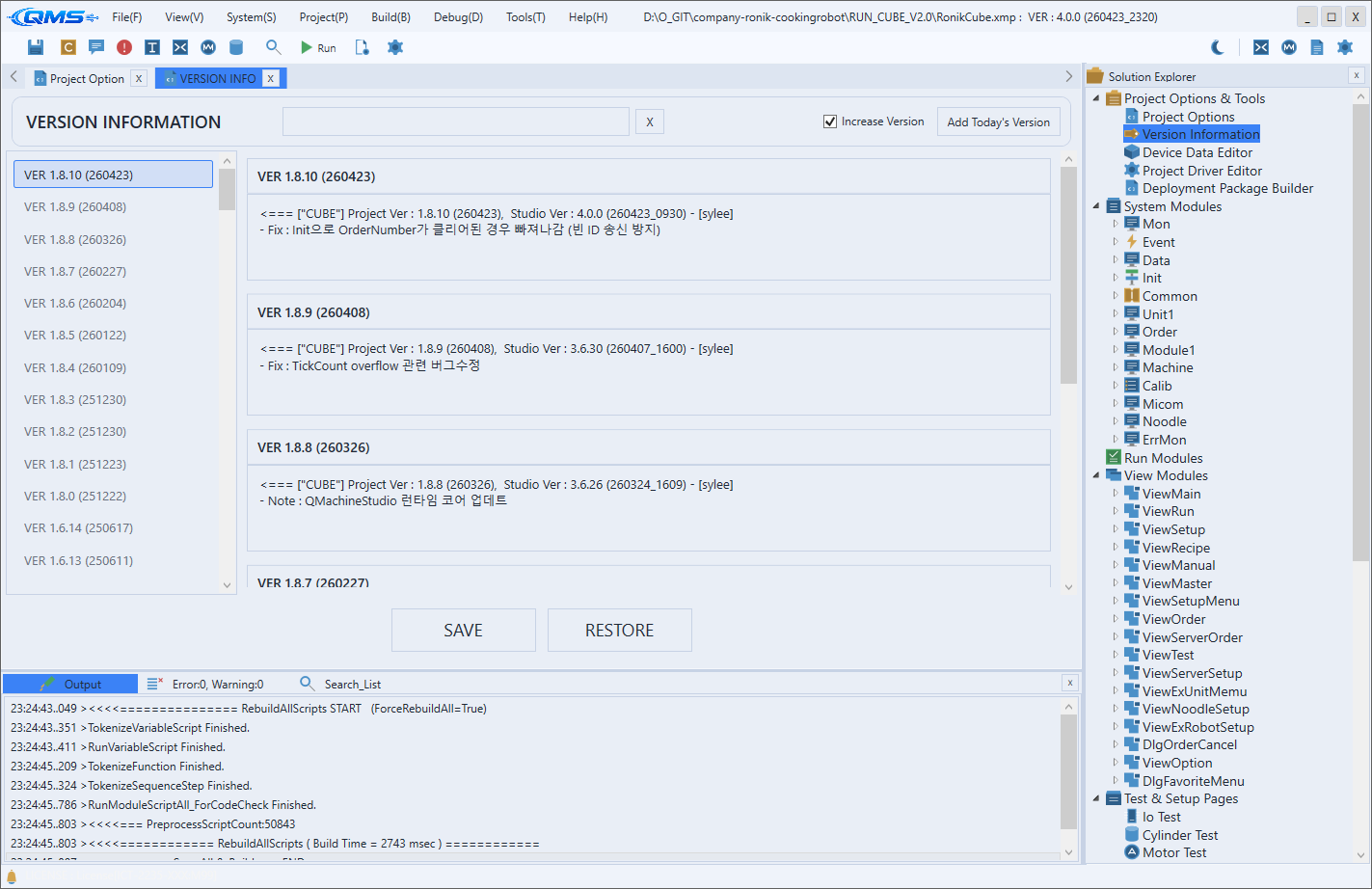
Open it from the top menu bar via Project → Version Information. The screen is split into a version list on the left and a detail area on the right, with search and version-add tools placed at the top. After editing an entry, save it with the SAVE button at the bottom.
Top Area
At the top of the screen, the title, search, and version-add tools are arranged in a single row. You can quickly find the content you want among many version entries and easily add today's version.
| Element | Purpose |
|---|---|
Search (search TextBox) | Filters entries by version number and contents. |
X button | Clears the search term and returns to the full list. |
Increase Version | When checked, automatically increments the version number when adding a new version. |
Add Today's Version | Adds a new version entry with today's date. |
The search is reflected in the list as you type, so you can quickly narrow down by a specific module or change keyword.
Version List (Left)
The version ListBox on the left displays the registered version entries in order. Each entry shows the version information (VersionInfo), and entries whose contents have been edited are marked with a MOD badge, so you can tell at a glance whether they have changed.
- Click an entry to display the details of that version on the right.
- Right-click an entry to delete that version via
Deletein the context menu. - The MOD badge indicates an edited state that has not yet been saved.
Details (Right)
The right area displays the changes of the selected version in card form. Each card has a version-information header at the top and an editable text area for the change contents below it.
Entries shown as read-only are distinguished from those you can edit directly, and edited content is immediately reflected in the list's MOD badge. Because per-module entries are listed together, you can compare the change history of the whole project and individual modules on the same screen.
Workflow
- Open the screen via
Project→Version Information. - If needed, find the desired version/module entry with
Searchat the top. - Select an entry from the left list and view or edit its content on the right.
- To leave a new version, check
Increase Versionand clickAdd Today's Version. - Save with
SAVEat the bottom, or clickRESTOREto revert.