
Project Option
Project Option is the screen where you manage the project-wide settings in one place. It defines values that affect the entire project, such as the main screen resolution, the view shown at startup, the supported languages, the error folder, and the default design font.
Open it from the top menu bar via Project → Project Option, or click the Project Options button on the toolbar. The tabs are arranged vertically on the left, and the Application tab opens by default. After you finish, click the SAVE button at the bottom to apply the changes to the project.
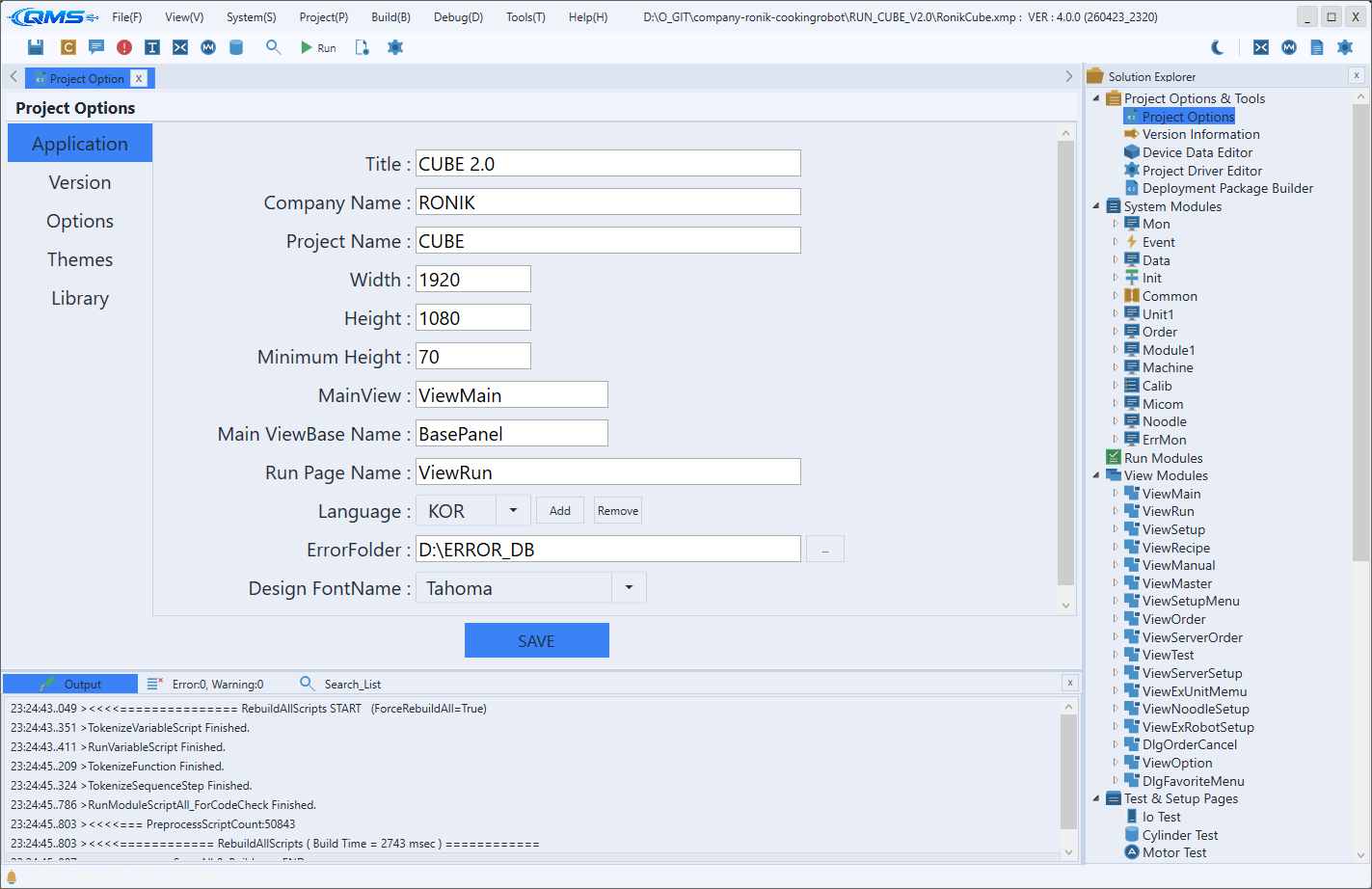
Application Tab
The Application tab defines the project's identification information and the layout of the main screen. Each field is used during build to generate the runtime screen, so enter the values accurately.
| Field | Purpose |
|---|---|
Title | Program title. Used as the title of the machine screen at runtime. |
Company Name | Company name. Shown together with version information and elsewhere. |
Project Name | Project name. Serves as the basis for the deployment package and file names. |
Width | Main screen width (px). An integer in the 100–10000 range. |
Height | Main screen height (px). An integer in the 100–10000 range. |
Minimum Height | The minimum height (px) the main screen may take. |
MainView | Name of the main view loaded at startup. |
Main ViewBase Name | Name of the ViewBase that the main view inherits from. |
Run Page Name | Name of the views/pages accessible in the Start state. Separate multiple entries with commas (e.g., RunView, MonitorView). |
Language | A combo box for the list of languages the project supports. Use the adjacent Add / Remove buttons to add or delete a language. |
ErrorFolder | Path to the folder where error images and the like are stored. Use the ... button to select a folder. |
Design FontName | The font used by default on the design screen. |
Match Width and Height to the resolution of the actual operating monitor. Only the views listed in Run Page Name can be accessed in the running (Start) state, so list both the operation screen and the monitor screen, separated by commas, if you want to expose them all.
Other Tabs
Besides Application, several tabs are arranged vertically, each responsible for a different settings area of the project. They let you fine-tune the operating environment, including version numbers, behavior options, themes, and the startup screen.
| Tab | Area |
|---|---|
Version | Sets project version values such as major/minor/build number. |
Options | Behavior options such as stopping sequences on error, the virtual keyboard, and scan time. |
Themes | Selects the LIGHT / DARK / CUSTOM theme mode. |
Startup | Startup options such as the items shown on the splash screen. |
Library | Registers external library DLLs. |
Toast / Alarm | Sets the display style and colors of toasts and alarms. |
The settings on each tab are also saved only when you click the SAVE button at the bottom. Build- and deployment-related settings are handled in a separate deployment tool, so refer to the related topics for assembling the field package.
Workflow
- Open the screen via
Project→Project Option. - On the
Applicationtab, enterTitle,Company Name, andProject Name. - Match the main screen resolution with
Width,Height, andMinimum Height. - Specify the views shown at startup with
MainViewandRun Page Name. - Configure the supported languages with
Add/Removenext toLanguage. - Save the settings with the
SAVEbutton at the bottom.