
Communication
Communication is the screen for opening serial and network communication ports and testing send and receive directly to check and diagnose the link. Choose the communication to inspect in COMM LIST on the left, then open the port and review the sent and received log in COMMUNICATIONS on the right. The entry path is System → Communication.
The communications handled here use exactly the drivers and protocols defined in Com Driver. In other words, this screen is not where you create drivers but a tool to verify that a defined communication actually connects to the real device on site and that commands flow correctly.
Communication checks can drive a connected external device for real. A sent command may move the device, so confirm the surrounding area is safe before operating.
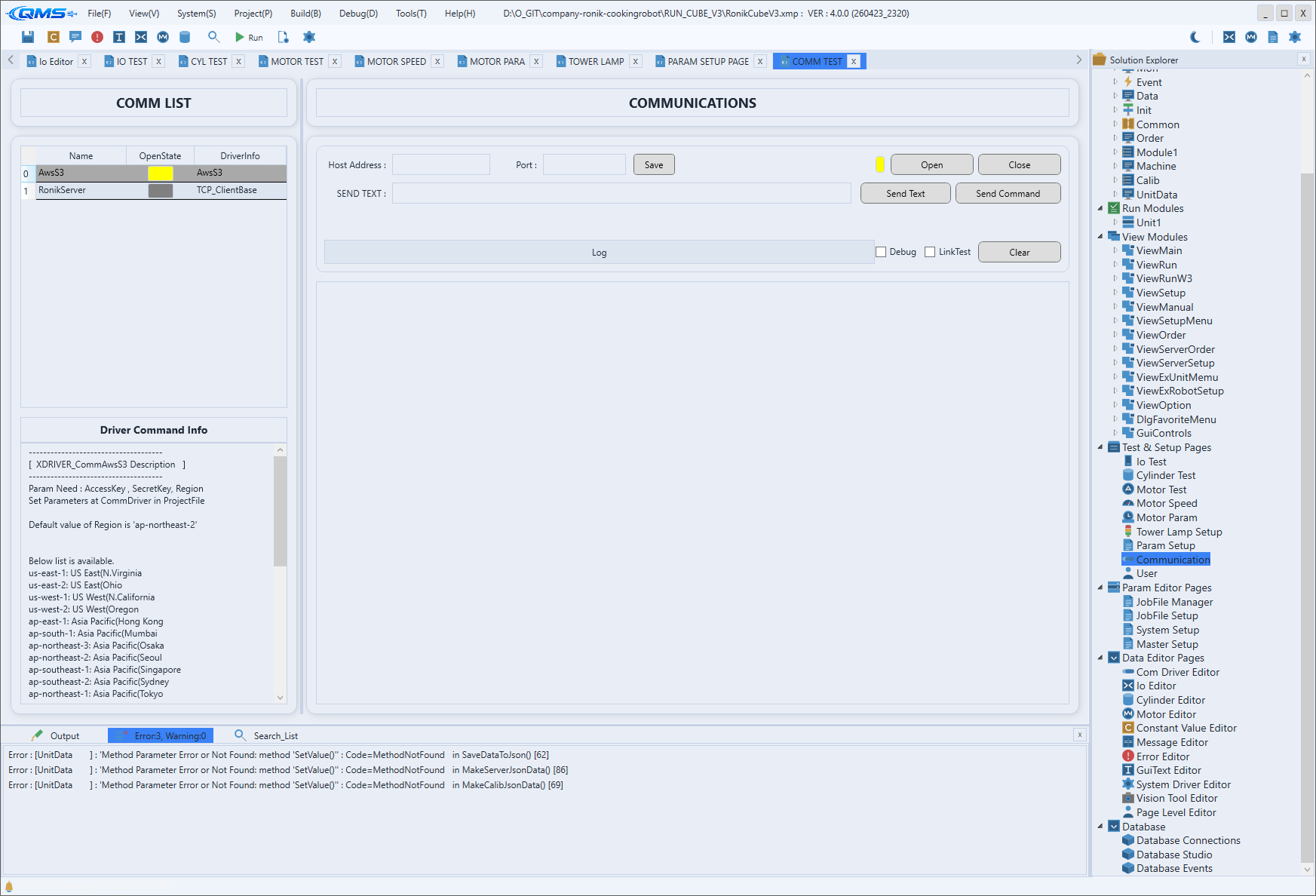
Main areas
The screen consists of the communication list on the left and the communication controls and log on the right.
| Area | Description |
|---|---|
| COMM LIST | The communication list DataGrid. The columns are Name, OpenState, and DriverInfo; OpenState shows whether the port is open with a colored rectangle. |
| Driver Command Info | Shows, read-only, the command help supported by the selected communication driver. |
| Connection setup | Depending on the communication type, Host Address and Port (network) or ComPort and Baudrate (serial) are shown. Save stores the settings. |
| Open / Close | Opens and closes the port. The adjacent indicator color shows the connection state. |
| SEND TEXT | Enter the string to send. Send Text sends a string and Send Command sends a driver command. |
| CHANNEL / VALUE | Enter a channel number and value, then Set Channel writes the value and Get Channel reads it. |
| Log | Sent and received entries accumulate in time order. The Debug and LinkTest check boxes adjust what is shown, and Clear empties it. |
Workflow
- Open the screen from System → Communication.
- Select the communication to inspect in COMM LIST. Check whether it is currently open by the
OpenStatecolor. - Verify the port settings in connection setup, save with
Saveif needed, then open the port withOpen. - Enter a string in
SEND TEXT, send withSend TextorSend Command, and check the response inLog. - When done, close the port with
Close. If the log grows long, tidy it withClear.