
User
User is the screen for managing user authentication and permissions. Its title is USER ACCOUNT, and it provides login and logout, password change, and — at a higher permission level — user management. The permission level decides which machine features you can access. The entry path is System → User.
The top of the screen shows the current login info. When not logged in, a guidance message is shown; after logging in, it changes to the account info. Permission levels are generally tiered into roles such as operator, engineer, and administrator, where higher levels have broader access to setting changes and management features.
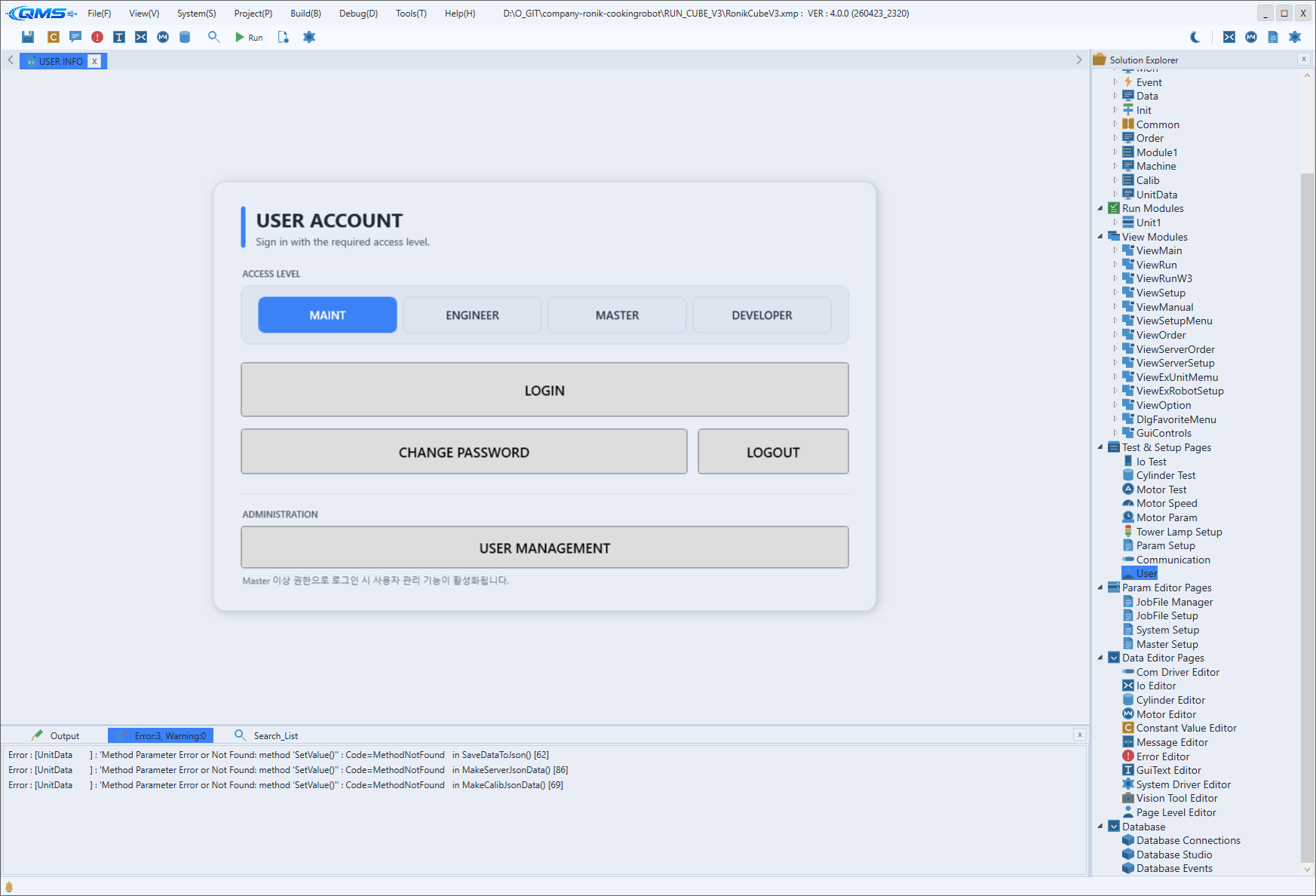
Main areas
The screen consists of a header, the authentication buttons, and an administration section.
| Area | Description |
|---|---|
| USER ACCOUNT header | Shows the title and the current login state. Depending on whether you are logged in, a guidance message or the account info appears. |
| LOGIN | Performs user authentication. On success, the features matching the permission level become enabled. |
| CHANGE PASSWORD | Changes the current account's password. |
| LOGOUT | Logs out and releases the permission. |
| ADMINISTRATION | The administration section. Management features appear only when logged in with sufficient permission. |
| USER MANAGEMENT | The button for managing user accounts. It becomes enabled only when logged in with a higher permission (Master and above). |
Permissions and feature access
The permission level determines the scope of feature access. Lower levels are limited mainly to operation
and monitoring, while higher levels can reach sensitive features such as parameter changes and system
settings. The USER MANAGEMENT button is hidden by default and appears only when logged in with
Master permission or above, allowing user accounts to be managed.
Dividing permissions this way prevents unintended setting changes on the operation floor and separates
features according to responsibility. When work is done, releasing the permission with LOGOUT is the
safe practice.
Workflow
- Open the screen from System → User.
- Authenticate the account with
LOGIN. The header shows the current login info. - To change the password, use
CHANGE PASSWORD. - With
Masterpermission or above,USER MANAGEMENTappears, where user accounts are managed. - When done, release the permission with
LOGOUT.