
Getting Started
A step-by-step guide for those new to QMachineStudio. From installation to first run, license verification, and understanding the development approach, this page covers what you should know before your actual first project.
Recommended System Requirements
| Item | Recommended |
|---|---|
| OS | Microsoft Windows 10 or later (64-bit) |
| CPU | Intel i5 or higher |
| RAM | 8 GB or more |
| Storage | 2 GB or more free space |
| Other | .NET Framework 4.8 · (optional) USB license dongle |
Installation
- Run the installer you received (e.g.,
QMS_Setup_x.x.x.exe). - Follow the prompts to specify the installation path. When installation finishes, a
QMachineStudioshortcut is created on the desktop. - If you use a license, install the USB dongle driver once on first use.
The installation folder requires write permission, so installing with an administrator account is recommended. Real-time antivirus software may block access to project files (*.xmp · *.xms · *.xmd), so add the installation folder as an exception if needed.
First Run
- Run the desktop shortcut or
QMachineStudio.exe. - When the main window opens, the top menu and toolbar, the
Solution Exploreron the left, the tabbed editing area in the center, and the result panel at the bottom are displayed. Each area is described in detail in the Main Window. - At first there is no open project, so it is recommended to open the sample project below and review the screen layout.
To exit, use the X at the top right of the window or File → Exit. If there are unsaved changes, you will be asked whether to save.
Sample Projects Installed Alongside
Examples for various fields are provided in the SampleProject folder of the installation directory. From File → Open Project, you can open the .xmp file of the desired sample to run and analyze it.
| Category | Path (example) | Content |
|---|---|---|
| Syntax overview | ScriptSyntaxSample | A learning sample for running XScript syntax via buttons organized by category |
| Screen (GUI) | GUI/UISample1920x1080 · GUI/DeviceUISample | FHD default UI · device UI control layout sample |
| Communication | Communication/TCP ServerClient · UDP_Sample · Mewtocol_Sample · ZeroMQ_Sample · CloudAWS_S3_Sample | TCP/UDP · PLC protocol · message queue · cloud integration |
| Fieldbus | Fieldbus/ModbusTCP_Client | Modbus/TCP client |
| Motion · IO | MotionIO/QMachineNetSample · MotionIO/AceAutoPMC | Motion controller · IO board integration |
| Database | Database/DB_Sqlite | SQLite integration |
| Chart · File | ChartDemo · FileSample | Chart · log · file I/O demo |
| Lighting · Vision | LightController/JoySystem_JPF · UsbCamera_Sample | Lighting controller · USB camera/vision |
| Library | LibrarySample/FtpClient, etc. | External library (FTP, etc.) integration |
If this is your first time, it is recommended to first open ScriptSyntaxSample, where you can run syntax directly by category, and GUI/UISample1920x1080, which shows the screen layout.
License Verification
You can check the current license status from the Tools → Check License menu.
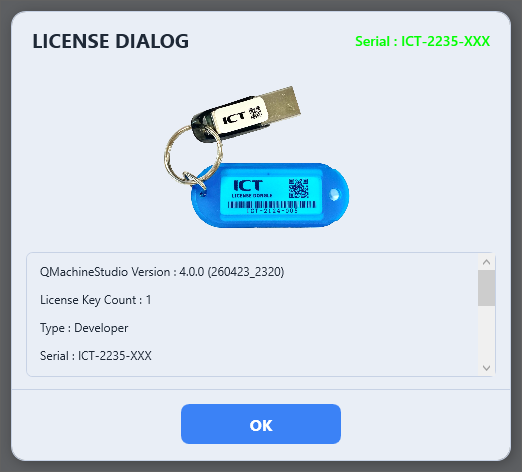
- Recognized normally — The USB dongle is connected and authenticated, displaying the version, license type (e.g., Developer), serial, motor count, and more.
- No dongle — The dongle is not connected, or the driver is not installed.
- Runtime mode — Development features are disabled and only execution is possible.
For inquiries about license types and scope, contact sales@ict-lab.com.
The QMachineStudio Development Approach — Add and Edit in the Tree
QMachineStudio does not work by directly editing a single source file as text, the way C / C++ / C# do. In the Solution Explorer tree on the left, you add and remove modules, functions, sequences, and steps as individual items, and edit only the code of the selected item in a separate tab. Understanding this approach makes subsequent work much easier.
- Modules: Divided into
Runmodules, which hold the operation logic, andViewmodules, which hold the screen (HMI). - Structure of a Run module: When you expand a module, it consists of
Variable(module variables),Functions(individual functions), andSequence(the individualStepitems within a sequence). - Adding a function: Right-click
Functions→Add Function→ enter a name, and a function node is added with that function's editing tab opening automatically. - Adding a step: Right-click
Sequence→Add Stepto add a sequence step. - Rename · Move · Delete: Right-clicking each function/step node lets you use
Rename·Move Up/Down·Delete. - View modules: Place controls such as buttons on the screen, and connect the controls' events (e.g., clicks) to functions.
In other words, rather than "directly typing many functions into one long script file," you add the functions/steps you need in the tree and then write only the code for that node. You will learn the actual flow step by step by creating a single button in the first project.
Troubleshooting
| Symptom | Check |
|---|---|
| Build error "Module not found" | Whether the module is included in the Solution Explorer |
| Runtime error "License invalid" | Reinsert the USB dongle · install the driver |
| IO is not updated | Check the board connection in System → Io Test |
| Where do I view logs? | Check system logs with the Log Manager |
Next Steps
- First Project — Add a button · click event · for-loop logging
- Main Window — Basic layout and main areas
- Run Module — Variable · function · sequence · step structure
- Log Manager — Runtime log inspection tool